Table of Contents
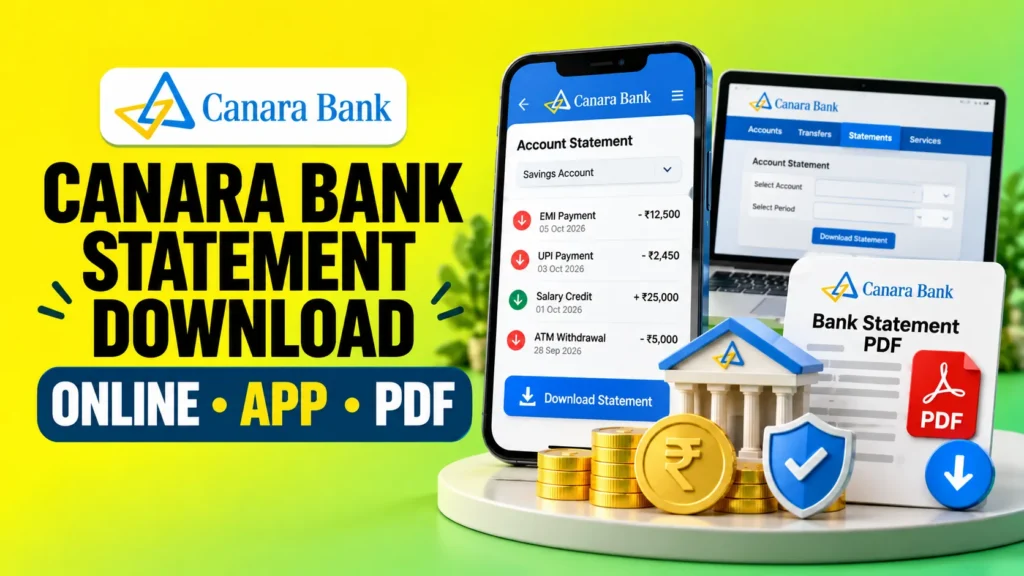
Quick Answer: How to Download Canara Bank Statement
Method | What You Get | Best For | Time |
|---|---|---|---|
Canara ai1 App | Full statement (up to 1 year) | Mobile users | 2–3 minutes |
Canara e-Passbook App | Digital passbook + PDF | Quick mobile access | 1–2 minutes |
Net Banking | Full statement (up to 5 years) | Desktop users, older records | 3–5 minutes |
WhatsApp Banking | Mini statement + email request | Chat-based access | 1–2 minutes |
ATM | Mini statement (last 10 transactions) | No internet needed | Instant |
Missed Call | Last 5 transactions via SMS | Basic phone users | 1 minute |
Bank Branch | Printed statement (any period) | Older records, offline help | Same day |
⚡ Fastest Method: Canara ai1 app or e-Passbook app for full statements. Missed call for quick balance check.
How to Register for Canara ai1 App (First-Time Users)
If you haven’t used Canara ai1 before, you need to register first. Here’s how:
- Download the official Canara ai1 app from the Google Play Store or Apple App Store.
- Open the app and select the SIM card linked to your registered mobile number.
- The app will send a verification SMS automatically. Wait for the OTP.
- Enter the OTP you receive on your registered mobile number.
- Create a 5-digit login passcode (MPIN) and confirm it.
- Accept the terms and conditions to complete the setup.
- You can now log in using your MPIN anytime.
💡 Tip: If you have multiple accounts with Canara Bank, all linked accounts will be visible after login. You can switch between them easily.
Method 1: How to Download Canara Bank Statement from Canara ai1 App
The Canara ai1 mobile banking app provides an E Passbook feature for checking and downloading account statements.
Step-by-Step Process
- Open the official Canara ai1 mobile banking app on your phone.
- Log in using your registered MPIN (5-digit passcode).
- Tap on “Pay and Transfer” from the bottom menu.
- Select “E Passbook” from the options.
- Choose the account if you have more than one account linked.
- Select the statement period — options include:
- Last 10 days
- Last 1 month
- Last 3 months
- Last 6 months
- Last 1 year
- Custom dates (any range within 1 year)
- Tap “Generate” to view your account statement.
- Tap the download icon (PDF symbol) or share icon to save or send the statement.
How Far Back Can You View Statements in Canara ai1?
You can generate an E Passbook statement for up to one year through the Canara ai1 app. You can also choose a custom date range within that 1-year limit.
If you need records older than 1 year, use internet banking (up to 5 years) or visit your bank branch.
Can You Email the Statement from Canara ai1?
Yes. After generating the statement:
- Tap the “Share” icon.
- Select “Email” from the sharing options.
- The statement will be sent to your registered email address automatically.
Method 2: How to Download Canara Bank Statement Using Canara e-Passbook App
Canara Bank offers a separate e-Passbook app that works as a digital passbook. This is different from the Canara ai1 app and is ideal for users who only want to view statements without full banking features.
How to Set Up Canara e-Passbook App
- Download “Canara e-Passbook” from the Google Play Store or Apple App Store.
- Open the app and tap “Login”.
- Enter your registered mobile number.
- You will receive an OTP — enter it to verify.
- Set your 4-digit MPIN for future logins.
- Your accounts linked to that mobile number will appear automatically.
How to Download Statement from e-Passbook App
- Open the Canara e-Passbook app and log in with your MPIN.
- Select your account from the list.
- Tap on “Passbook” or “Pass Sheet”.
- Select the date range you need.
- Tap “Download” to save the statement as PDF.
- Alternatively, tap “Email” to send it to your registered email address.
Note: The e-Passbook app shows a simplified transaction view compared to the full ai1 app. For detailed statements with all fields, use Canara ai1 or net banking.
Method 3: How to Download Canara Bank Statement Through Net Banking
Internet banking is the best option when you need a detailed statement on a larger screen or want to download statements older than 1 year (up to 5 years).
Step-by-Step Process
- Visit the official Canara Bank website: canarabank.com
- Click on “Internet Banking” or “Net Banking Login” on the homepage.
- Log in with your Customer ID and Password.
- On the dashboard, click the “Accounts” tab on the left sidebar.
- Click “Account Statement” below the Accounts tab.
- Select your account from the dropdown (if you have multiple accounts).
- Choose the date range:
- Last 1 month
- Last 3 months
- Last 6 months
- Last 1 year
- Custom dates (up to 5 years)
- Select the format: PDF, Excel (XLS), or CSV.
- Click “Download” or “View” to get your statement.
Can You Download a 3-Month, 6-Month, or 1-Year Statement?
Yes. Canara Bank net banking allows you to select any period within the last 5 years. You can choose:
- 3-month statement for quarterly records
- 6-month statement for half-yearly records
- 1-year statement for annual records
- Custom range for specific dates
Can You Download Statements Older Than 5 Years?
No. Net banking only provides statements for the last 5 years. For older records, you must visit your home branch with valid ID proof. Charges may apply for very old statements.
⚠️ Safety Tip: Always access net banking through the official canarabank.com website. Do not click links from unknown SMS or emails. Avoid using public WiFi or cyber cafes for banking transactions.
Method 4: How to Get Canara Bank Statement on WhatsApp
Canara Bank offers WhatsApp Banking through the official number 9076030001. You can view transactions and request statements via chat.
How to Register for Canara Bank WhatsApp Banking
- Save the number 9076030001 in your phone contacts as “Canara Bank”.
- Open WhatsApp from your registered mobile number.
- Send a “Hi” or “Hello” message to 9076030001.
- You will receive a welcome message with service options.
- Accept the terms and conditions by replying with the required option.
- Complete OTP-based authentication (OTP sent to your registered mobile number).
- Registration is complete. You can now use all WhatsApp banking services.
How to Get Statement Through WhatsApp
- Send “Hi” to 9076030001.
- Select “Account Services” or reply with the corresponding number.
- Select “Mini Statement” to view recent transactions.
- Select “Statement Request” to get a full statement.
- Choose the account (if multiple accounts are linked).
- The statement will be sent to your registered email address.
Important: Always confirm you are messaging the official number 9076030001. Never share your OTP, PIN, or password via WhatsApp. Canara Bank will never ask for these details through chat.
Method 5: How to Get Canara Bank Mini Statement Through ATM
An ATM mini statement shows the last 10 transactions and is useful for quick checks when you don’t have internet access.
Step-by-Step Process
- Visit any Canara Bank ATM or a shared ATM that supports Canara Bank cards.
- Insert or tap your Canara Bank debit card.
- Enter your 4-digit ATM PIN securely (cover the keypad).
- Select “Mini Statement” from the menu options.
- Choose the account type (Savings or Current) if required.
- The ATM will display the last 10 transactions on the screen.
- You can also print a slip with the mini statement.
Note: ATM mini statements are free for the first few requests per month. Additional requests may incur a small fee (usually ₹5–₹10). Check with Canara Bank for the latest charges.
Method 6: How to Get Canara Bank Mini Statement by Missed Call
Missed call banking is the fastest method for checking recent transactions without internet or smartphone.
Missed Call Numbers
Service | Number | What You Get |
|---|---|---|
Balance Enquiry | 8886610360 | Account balance via SMS |
Last 5 Transactions (English) | 09015734734 | Mini statement in English |
Last 5 Transactions (Hindi) | 09015613613 | Mini statement in Hindi |
How It Works
- Dial the appropriate number from your registered mobile number.
- Let it ring once and disconnect (missed call).
- You will receive an SMS within a few seconds with:
- Last 5 transactions
- Transaction dates and amounts
- Debit/Credit indicators
Important: These numbers only work from your registered mobile number. If you call from a different number, you will not receive any SMS.
Method 7: How to Get Canara Bank Statement from a Branch
Visiting a branch is useful if:
- You cannot access digital banking
- You need statements older than 5 years
- You need a physically stamped/signed statement for official purposes (visa, loan, legal)
What You Need
- Visit your home branch or any Canara Bank branch.
- Carry your original ID proof (Aadhaar, PAN, Passport, or Voter ID).
- Carry your passbook (if available).
- Fill out a statement request form at the branch.
- Mention the date range you need.
Charges for Branch Statements
Statement Type | Charges |
|---|---|
E-Statement (email) | Free for savings accounts |
Current month printed statement | Usually free |
Previous months printed statement | ₹50–₹100 per page (varies by branch) |
Duplicate passbook | ₹100–₹200 |
Statement older than 1 year | ₹100–₹200 per year |
Tip: For loan or visa applications, request a stamped and signed statement from the branch manager. This carries more weight than a downloaded PDF.
How to Download Canara Bank Statement PDF
If you need a PDF statement for your records, income proof, loan documentation, visa paperwork, or tax filing, follow these steps:
From Canara ai1 App
- Generate the statement using the E Passbook feature (see Method 1).
- Tap the download icon (PDF symbol).
- The PDF will be saved to your phone’s Downloads folder.
- You can also tap “Share” → “Save to Files” or send via email/WhatsApp.
From Net Banking
- Follow Method 3 to reach the Account Statement page.
- Select “PDF” as the download format.
- Click “Download”.
- The PDF will be saved to your computer’s default download location.
From WhatsApp Banking
- Request a statement through WhatsApp (Method 4).
- The statement will be sent to your registered email address as a PDF attachment.
- Download the attachment from your email.
How to Open a Password-Protected Canara Bank Statement PDF
Some Canara Bank statement PDFs are password-protected for security. The password format depends on the channel used to download the statement.
Common Password Formats
Channel | Likely Password Format |
|---|---|
Canara ai1 App | First 4 letters of your name (in CAPS) + last 4 digits of account number |
Net Banking | Date of birth in DDMMYYYY format |
Email Statement | First 4 letters of your name + last 4 digits of account number |
Example
If your name is Rahul Sharma and your account number ends with 1234:
- Password:
RAHU1234
If your date of birth is 15 March 1990:
- Password:
15031990
⚠️ Important: The exact password format is displayed in the app or net banking portal when you download the statement. Do not rely on third-party websites that claim a universal password formula. If the password doesn’t work, contact Canara Bank customer care at 1800 1030.
Full Statement vs Mini Statement: What’s the Difference?
Feature | Full Account Statement | Mini Statement |
|---|---|---|
Transactions Covered | All transactions in the selected period | Last 5–10 transactions only |
Date Range | Custom (up to 5 years via net banking) | No custom range |
Best For | Financial records, loans, tax filing, visa | Quick balance/transaction check |
Download Option | Yes (PDF, Excel, CSV) | No (view/print only) |
Common Methods | ai1, e-Passbook, Net Banking, Branch | ATM, Missed Call, ai1, WhatsApp |
Cost | Free (digital) / ₹50–₹200 (printed) | Free |
When to use what: Use a full statement for loan applications, income proof, tax filing, or dispute resolution. Use a mini statement for quick checks like “Did my salary credit?” or “Was my EMI deducted?” If an EMI is deducted twice, use the full statement to check both debit entries, transaction dates and reference details before contacting the lender or bank.
What Information Is Shown in a Canara Bank Statement?
A Canara Bank statement provides a structured record of all account activity. Depending on the format, you will see:
Field | Description |
|---|---|
Transaction Date | Date when the transaction occurred |
Value Date | Date when the amount was actually credited/debited |
Description / Narration | Details of the transaction (e.g., “SALARY CREDIT”, “NEFT-AXIS BANK”, “AMAZON PAYMENT”) |
Debit Amount | Money withdrawn or deducted |
Credit Amount | Money deposited or received |
Running Balance | Balance after each transaction |
Transaction Reference | Unique ID for tracking (e.g., UTR number for NEFT/RTGS/IMPS) |
Branch Code | Code of the branch where the transaction originated |
Cheque Number | If applicable, for cheque-based transactions |
Understanding Common Transaction Codes
Code | Meaning |
|---|---|
NEFT-CR | Credit via NEFT transfer |
NEFT-DR | Debit via NEFT transfer |
IMPS-CR | Credit via IMPS (instant transfer) |
RTGS-CR | Credit via RTGS (large amount transfer) |
Auto-debit via NACH (EMI, SIP, bill payments) | |
POS-DR | Debit card purchase at Point of Sale |
ATM-WDL | Cash withdrawal from ATM |
INT-CR | Interest credited |
CHG-DR | Bank charges debited |
💡 Tip: If you see a transaction you don’t recognize, note the UTR number (usually 16–22 digits) and contact Canara Bank customer care. The UTR number helps the bank trace the exact transaction.
Can You Get a Canara Bank Statement Without Net Banking?
Yes. Internet banking is not compulsory. Here are all the options that don’t require net banking:
Method | Requires Internet? | Requires Smartphone? |
|---|---|---|
Canara ai1 App | Yes | Yes |
Canara e-Passbook App | Yes | Yes |
WhatsApp Banking | Yes | Yes (basic phone works) |
ATM Mini Statement | No | No |
Missed Call Banking | No | No (any phone works) |
Bank Branch | No | No |
For users without internet: Use missed call banking (last 5 transactions) or visit an ATM (last 10 transactions). For full statements, visit your branch.
Troubleshooting: Canara Bank Statement Not Downloading?
If you face issues while downloading your Canara Bank statement, try these solutions:
Problem | Solution |
|---|---|
App not opening / crashing | Update Canara ai1 from Play Store/App Store. Clear cache and restart. |
Cannot find E Passbook | Go to Pay and Transfer → E Passbook. If not visible, update the app. |
Statement period not available | Canara ai1 only shows up to 1 year. Use net banking for older records (up to 5 years). |
PDF not opening | Check the password instructions shown during download. Try the common formats mentioned above. |
Net banking login failed | Reset your password using “Forgot Password”. Ensure CAPS LOCK is off. |
WhatsApp not responding | Ensure you’re messaging 9076030001 from your registered mobile number. |
Missed call not working | Call only from your registered mobile number. Check if DND is blocking SMS. |
Wrong account statement | You may have multiple accounts. Select the correct account before generating the statement. |
Transactions missing | Verify the date range selected. Some pending transactions may not appear immediately. |
All digital methods fail | Contact Canara Bank customer care: 1800 1030 or visit your nearest branch. |
Contact Canara Bank Support
Channel | Details |
|---|---|
Toll-Free Customer Care | 1800 1030 |
Missed Call Balance | 8886610360 |
Missed Call Mini Statement (English) | 09015734734 |
Missed Call Mini Statement (Hindi) | 09015613613 |
WhatsApp Banking | 9076030001 |
In-App Support | Canara ai1 → Profile → Contact Us |
Official Website |
Final Word
Downloading a Canara Bank statement is simple and can be done through multiple channels depending on your needs:
- For detailed mobile statements: Use Canara ai1 E Passbook (up to 1 year)
- For quick passbook view: Use Canara e-Passbook app
- For older records (up to 5 years): Use Canara Bank net banking
- For chat-based access: Use WhatsApp Banking at 9076030001
- For recent transactions without internet: Use missed call or ATM
- For stamped/official statements: Visit your bank branch
Always use official Canara Bank channels and keep your login credentials secure. If you face any issues, contact Canara Bank customer care at 1800 1030 or visit your nearest branch.
Frequently Asked Questions (FAQs)
Q1. How can I download my Canara Bank statement for the last 6 months?
Use the Canara ai1 app: Go to Pay and Transfer → E Passbook → Select “Last 6 Months” → Generate → Download PDF. Alternatively, use net banking and select a custom 6-month date range.
Q2. Can I download a Canara Bank statement older than 1 year?
The Canara ai1 app only shows up to 1 year. For statements between 1–5 years old, use Canara Bank net banking. For records older than 5 years, visit your home branch with ID proof. Charges may apply for very old statements.
Q3. What is the password for Canara Bank statement PDF?
The password format is usually:
- First 4 letters of your name (in CAPS) + last 4 digits of your account number (e.g.,
RAHU1234) - OR Date of birth in DDMMYYYY format (e.g.,
15031990)
The exact format is displayed when you download the statement. Do not use third-party websites for password information.
Q4. How can I get a Canara Bank statement without internet banking?
You have several options:
- Canara ai1 app (requires internet)
- Canara e-Passbook app (requires internet)
- WhatsApp Banking at 9076030001
- Missed call to 09015734734 (last 5 transactions, no internet needed)
- ATM mini statement (no internet needed)
- Bank branch visit (no internet needed)
Q5. Is there any charge for downloading Canara Bank statements?
No. Downloading statements through the Canara ai1 app, e-Passbook app, net banking, or WhatsApp is completely free for savings account holders. Printed statements at branches may incur charges of ₹50–₹200 depending on the period.
Q6. Can I download my Canara Bank salary account statement?
Yes. The process is the same as any savings account. Use the Canara ai1 app, net banking, or any other method mentioned above. Salary account statements show your monthly salary credits, which are useful for loan applications.